Standalone

Showing posts with label Blogger Tips And Tricks. Show all posts

Tuesday, June 2, 2015

Stop blogger from tracking my pageviews not working properly fix issue


http://livoxt.blogspot.com/2015/06/stop-blogger-from-tracking-my-pageviews-not-working-properly-fix-issue.html

This trick really works.

Blogger keeps tracking my pages even after I disabled the feature.

Now Blogger wont track your pageviews anymore.
It is very useful in analyzing incoming traffic other than your own.

The concept of this method is to set the cookie on your browser to stop tracking pages counts of your blog with private domain name. It does not actually fix the issue of Blogger's interface.

So lets see how to "Don't track your own page views" on the Stats Widget.

Follow the steps below

Step 1:
Go to your browser and open up a new tab

Step 2:
Copy the code below

www.yourdomain.com/b/statsBlockingCookie?action=SET&callback=__gwt_jsonp__.P2.onSuccess

Step 3:
Replace the www.yourdomain.com name with your own domain name.


Step 4:
Paste the code by pressing Ctrl+V in your browser's address bar and hit enter

Image from Step 3

Step 5:
When you have done the above correctly, you will get to a page that looks like the image below.

Image from Step 4

Step 6:
Now close the tab and refresh your blogging homepage.
You can refresh over and over again, it should have stopped tracking you.

Image from Step 6

If you delete cookies stored on your computer, your blog will start tracking you again, so try to delete the particular cookies associated with this URL, and it would be reversed.


Please Note:
- This method does not fix the original problem of the blogger stats link.
- If you have other authors to access the blog, they have to do the same process.
- You need to do it on every browser of your computer.


If you have any questions, feel free to leave a comment below.


Livoxt Owner,

How to create an Android App for a blog or website FREE


AppsGeyser review by Livoxt


Have you been trying to create a nice clean interfaced app for your blog or website, well I just found this Great online website that offers just that and much, much more for FREE !!!

This app makes it easier for me to check my posts quickly on my Samsung smartphone,
and it will make your life easier too !!!

I have done this with my own Blog and can verify that it is absolutely fantastic.
Especially for noobs ;)


AppsGeyser offers:

  • Free Distribution

    Distribute your App through their network for Free.
  • Html 5 Support

    Use HTML 5 to add advanced features and enhance user experience.
  • Handy notifications

    Send pop-up notifications right to your apps.
  • Easy Monetization

    Earn money. Sell apps or get paid every time someone clicks ads in your apps.


You can download the Livoxt App to your pc for later installation to your android if you wish to see an example or go ahead and Create your own app.


This site is very, very user friendly!!!

  • AppsGeyser is a FREE service that converts your content into an App and makes you money.
  • Your app will have all you need including messaging, social sharing, tabs and full support for HTML5 enhancements.


CHECK OUT BELOW for all the AppsGeyser features:

Features:

  1. Website

    Convert your website into a mobile app.
  2. Youtube Plus

    Enter keywords or use channel url to create a youtube app.
  3. Promote

    Your website widget.
  4. Browser

    Create a custom internet browser.
  5. Calculator

    Your own math calculator.
  6. Converter

    Your own units converter.
  7. VK Page

    Your own VK group feed.
  8. Facebook Page

    Your facebook group feed.
  9. Messenger

    Create a chat app from your contacts.
  10. Business

    Enter your business info to create a business card.
  11. Mobile TV

    Create a mobile tv, direct streaming to your mobile.
  12. Photo

    Create a wallpaper app with your photos
  13. Page

    How to create an E-book.
  14. Html Code

    Create or copy and paste html.
  15. Web App

    Upload zipped web app content to create an app.
  16. News

    Use keywords or RSS to create a news app.
  17. Document

    Submit DOC or PDF to create a document app.
  18. Radio

    Provide station url(s) to create a radio app.
  19. Music

    Create a music app by providing track url(s).
  20. Wallpaper

    Create a wallpaper app with all your photos.
  21. Game Maker - App creation FREE software

    Basketball, Ragdoll, Chicken Snake, Jump Man, Color Change, Blink, Tap Wars, Cave 3D, Cube Sprint, Volleyball, Decision Maker, 2048, Quiz, Shooting Arcade, Spaceship, Coloring, Penguins Shooting, 4 Pics 1 Word, Scratch Quiz, Match 2 Pictures, Magic Ball, Match 3 in a row, Spin the bottle, Catch the ghost, Tap the cookie, 15 Game, Fishing, Fall Down.


Ebook - Resources:


Download AppsGeyser free guides to learn how to
create your own App and make it a success.

  • Planning Your App
    Plan your million-download app to be something that a million people will really want.
  • Distribute Your App
    Distribution is the most important part of app success.
    Get ideas how to boost your App.
  • Creating Your App
    Learn how to create Killer Apps from content you already have.
  • Grow Your App
    Learn how to keep improving your app and spreading the word to get millions of downloads.
     

Video Resources:


Watch Video Tours to quickly get the idea how to start with your own App.

  1. Apps Geyser Product Tour
    AppsGeyser is the fastest-growing web platform that allows you to convert any web content into an Android App.
  2. How to make Hello World App
    You can make an Android app using SDK and Eclipse.
    It takes over 10 minutes.
    Using AppsGeyser, you can make the same app in under 2 minutes!
  3. Create mobile app from a Tumblr Blog
    Find out how to make an Android app from a Tumblr blog in just two easy steps!
  4.  How to creat a mobile app from a Twitter Feed
    Use your Twitter account or search for a Twitter keyword.
    Create an app to capture any Twitter stream!
  5. Add your app to GetJar
    GetJar is a great way to distribute your Android app for free!
  6. Create great icons for free
    Learn how to make great Android app icons for free using free software available online.
  7. Create an app from a youtube channel
    Create an Android App from a YouTube Channel in just a few easy steps. 
  8. How to make an app from a mobile website
    If you have a mobile website or blog that you want to make into an app, use AppsGeyser to turn your site into an app in two easy steps.
  9. Use Wordpress plugin to create an app
    Turn your WordPress blog or website into a native Android app in seconds.
  10. Send push messages
    Learn how to send push messages with AppsGeyser's easy-to-use interface.
  11. Creating tabbed apps
    This video shows you how to add a tab to your app easily.
  12. Add “rate in Android Market” button
    How to add the 'Rate in Android Market' button to your AppsGeyser app, and then update it in the Android Market.
  13. AppsGeyser push notifications
    AppsGeyser Push Notification Technology allows you to send alert to your users' mobile phone.
  14. AppsGeyser API
    AppsGeyser API allows webmasters to create Android Apps on the fly.


  • Buy AppsGeyser's Paperbook
    Creating the next killer app isn't beyond your reach. There are millions of users waiting for you to give them something truly amazing to download. It's only a matter of creating it and reaching the users.
This book will guide you through the process of creating, promoting and monetizing your apps.

Leave a comment below and tell me, what you think about AppsGeyser?


Livoxt Owner,

Wednesday, May 27, 2015

How to add a PayPal donate button to a blog in 7 easy steps


Add a donate button to your blog
Donate Button Example


Hello again and welcome to my Blog!

For this tutorial I am going to show you how to add a donate button to your bloggers homepage.

The donate button comes in handy when people would like to give you a donation via Paypal for all your research and hard work on your blog posts.

You can see another example by going to my blog's homepage.

Step 1:
You have to apply for a Paypal account. But for this tutorial, I will assume that you already have a Paypal account. If you don't have a Paypal account you can apply by clicking here.

Step 2:
Log in to your Paypal account and click on the My PayPal Tab.

Image for Step 2
Step 3:
Now go to the Merchant Services Tab.

Image for Step 3

Step 4:
Find the Donations Tab in the Merchant Services page located under the "PayPal Website Payments Standard" category and go to the link.

In this section you can customise your donate button to your own liking.

Step 5:
Create your PayPal payment button by pressing the Save Changes Button.


Step 6:
After you have saved your button customisation changes, you will be directed to a page that's going to give you your widget code.
Press the Button >Select Code >Right Click on your mouse >Copy


Step 7:
Add the widget to your Blogger Account via the Html/Javascript Widget on your layout tab.
Just Paste your code in the content box and your done!!


Blogger Currently Online Widget

Blogger Currently Online Widget


This Tutorial is based on a service provided by whos.amung.us

In this tutorial I will share with you an easy way of putting a widget on your Blogs Homepage to show you and your current viewers, how many visits you currently have online.

Intro:
You can either visit whos.amung.us website or copy the code directly from here and follow the steps.

Step 1:
Highlight the code below and then copy it by pressing Ctrl+C.


<script id="_waudye">var _wau = _wau || []; _wau.push(["classic", "5zolcb8qdwna", "dye"]); (function() {var s=document.createElement("script"); s.async=true; s.src="http://widgets.amung.us/classic.js"; document.getElementsByTagName("head")[0].appendChild(s); })();</script>


Step 2:
Go to your Blogger account >Layout


Step 3:
Add a gadget where you would prefer your online viewer widget to be.


Blogger Add A Gadget Image


Step 4:
Scroll down to Html/JavaScript and press the plus sign to add the widget


Html/JavaScript Add-On Image


Step 5:
Now just type in your preferred Title for your widget or leave it blank, then paste the code in the content box by pressing Ctrl+V.


Step 6:
Save and close the widget and youre done, you can now preview your blog.


Your Widget will look like this Image

Note:
If you would like some different style widgets you can always visit the whos.amung.us website.

Yoast Plug In For Blogger | Seo Your Blog or Website


In this tutorial I will show you how to copy and paste an Html code, called Yoast for Blogger, this is actually a seo plug in for wordpress, but has been optimised for blogger.
This code has most of the important meta tags necessary for your blog or even your website.

Step 1:
Go to your Blogger Account > Template > Edit Html

Step 2:
Copy and Paste the code below just after your <head> tag

<!-- Yoast SEO Plugin For Blogger By Livoxt Starts --><b:if cond='data:blog.pageType == &quot;index&quot;'>      <title><data:blog.title/></title>      <b:else/>      <title>       <data:blog.pageName/>      </title><b:if cond='data:blog.pageTitle != data:blog.title'><meta expr:content='data:blog.pageName' name='keywords'/></b:if> <b:if cond='data:blog.metaDescription != &quot;&quot;'><meta expr:content='data:blog.metaDescription' name='description'/></b:if> <b:if cond='data:blog.pageType == &quot;index&quot;'><b:if cond='data:blog.url == data:blog.homepageUrl'>    </b:if> </b:if>

    <meta content='your blog image here.png' property='og:image'/> <meta content='your blog name here' property='og:site_name'/><meta content='your blog description here' property='og:description'/><meta content='your blog description here' property='og:description' name='description'/><meta content='your blog name here' property='og:title'/><meta content='all' name='robots'/><meta content='index, follow' name='robots'/><meta content='article' property='og:type'/><meta content='en_US' property='og:locale'/><meta content='all' name='audience'/><meta content='general' name='rating'/><meta content='website' property='og:type'/><meta content='your blog url here' property='og:url'/><meta content='index, follow' name='googlebot'/><meta content='your keywords here seperated by comas' name='keywords'/><meta content='USA' name='country'/><link href='your google plus publisher address here' rel='publisher'/><link href='your google plus author address here' rel='Author'/><link href='your google plus admin address here' rel='me'/><meta content='your name here' name='me'/><meta content='your email here' name='Email'/> </b:if><!-- Yoast SEO Plugin For Blogger By Livoxt End -->

Step 3:
Replace the Coloured words with your own.

Step 4:
Save & Close

Voila, your blogger template is now fully in Seo mode

Monday, May 25, 2015

How to post html codes to a blog


In this tutorial I will show you the easiest way to post and publish an html code for your blog viewers.
This method will be done with block quotes and how to use Firefox Encoder Decoder Add-on.

Step 1:
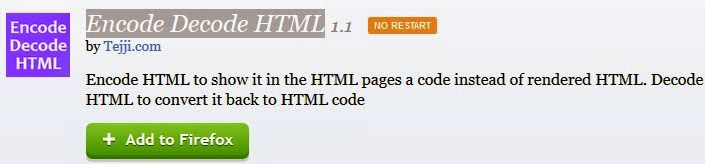
First thing you will have to do is download an add-on from firefox, called "Encode Decode HTML"
Click Here for the link.

Firefox Encode Decode Html Download Screenshot
Step 2:
After you have installed the add-on for firefox, you can find it at the top right of your firefox browser.

Firefox Encode Decode Html Shortcut Screenshot

Im going to use an example from one of my previous posts, like the image below.

Align your widget to center

<div align="center">
Your widget code goes here...
</div>

Step 3:
First highlight and then Copy the entire code in the box above, by pressing Ctrl+C.
"This will basically be the code that you want to show as is on your blog post"

Now if you go to your blogger post and you paste it directly to your blog post either in compose or html mode, it will look like this.

Your widget code goes here...
This is not the outcome that you wanted, it will basically only paste the text area as it is.
You want it to look like the first box, so follow the steps below.

Step 4:
What we need to do is Copy the code in the 1st box above again.

Step 5:
Open your Html Encode Decode Firefox add-on.

Step 6:
Now delete the default text in the "Enter Html" box.

Step 7:
Paste the code in the box by pressing Ctrl+V.


After pasting your code it shall look like the image above.

Step 8:
Press Encode


After encoding, you will get your transformed Html code like above.

Step 9:
Now Copy your transformed code by pressing Ctrl+C.

Step 10:
Open your blogger account and edit your desired post, or create a new one.

Step 11:
Now paste your Encoded Html code in your post.


This image shows how your code should look like in your post.

Step 12:
Highlight your code and press the block quote symbol, marked with a red box in the image above.

Step 13:
Save or Publish your post and your done!

Align your widget to center

<div align="center">
Your widget code goes here...
</div>

The image above will be your end result.


Friday, May 22, 2015

How to align Blogger Widgets to the Centre, Right or Left

Blogger Alignment


The following codes will help you in aligning your blogger widgets to the centre, right or left.

Step 1:

Choose your preferred method.

Step 2:

Copy the 3 line code.

Step 3:

Upon choosing your code, you can go ahead and replace the words "Your widget code goes here..." with the code, image or video that you wish to align.

Step 4:

After that just save & close and your done!

Align your widget to center

<div align="center">
Your widget code goes here...
</div>
Align your widget to right

<div align="right">
Your widget code goes here...
</div>

Align your widget to left

<div align="left">
Your widget code goes here...
 </div>

Friday, May 8, 2015

Html Tutorial View Scroll Box Snippet


I have been struggling on my previous blog post about Responsive Static Contact Page For Blogger

to give the Html Code as is without it being automatically translated to the codes contact form use.

In this post I would like to share the information to go about doing so.

Example Image

<script>
var blogId = 'How to do this';//
</div>

Step 1:

Copy the Html code that you would like to post and share to others.

Step 2:

Go to Online Syntax Highlighter.

Step 3:

Paste your code in the source code box.

Step 4:

Choose the appropriate language and style.

Step 5:

Copy the code in the Html code box.

Step 6:

Go to My Space Gens.

Step 7:

Customize your Scroll Box Style

Step 8:

Paste the code from Syntax Highlighter Html Code into My Space Gens Paragraph Box.

Step 9:

Press Submit to get your new code

Step 10:

Copy the code and paste it into the section where you want it to appear. You're Done!!!

Responsive Static Contact Page For Blogger


The official version of the Contact Form Widget has been launched by Blogger, but can only be added on the sidebar.
In this tutorial I will show you how to create an external contact page with your contact form showing up statically on that specific page.

Basic Contact Form For Blogger
Livoxt Contact Page

Step 1:

Open your Notepad and then Minimize

Step 2:

Open your Blogger Page

Step 3:

Copy your Blog Id as shown in your google search bar, by highlighting and pressing "Ctrl + C" and then Minimize.


Step 4:

Maximize your Notepad and paste your code "Ctrl + V" and then Minimize.

Step 5:

Copy the code below by highliting and pressing "Ctrl + C" 

<script>
var blogId = '625367430532119763';//this number should be manually edited.
//The 5 String messages below can also be edited
var contactFormMessageSendingMsg ='Sending...';
var contactFormMessageSentMsg = 'Your message has been sent.';
var contactFormMessageNotSentMsg = 'Message could not be sent. Please try again later.';
var contactFormEmptyMessageMsg ='Message field cannot be empty.';
var contactFormInvalidEmailMsg = 'A valid email is required.'

var widgetLoaded=false;
function sendEmailMsg() {
if(widgetLoaded== false) {
_WidgetManager._RegisterWidget('_ContactFormView', new _WidgetInfo('ContactForm1', 'sidebar', null, document.getElementById('ContactForm1'), {'contactFormMessageSendingMsg': contactFormMessageSendingMsg , 'contactFormMessageSentMsg': contactFormMessageSentMsg , 'contactFormMessageNotSentMsg': contactFormMessageNotSentMsg , 'contactFormInvalidEmailMsg': contactFormInvalidEmailMsg , 'contactFormEmptyMessageMsg': contactFormEmptyMessageMsg , 'title': 'Contact Form', 'blogId': blogId, 'contactFormNameMsg': 'Name', 'contactFormEmailMsg': 'Email', 'contactFormMessageMsg': 'Message', 'contactFormSendMsg': 'Send', 'submitUrl': 'https://www.blogger.com/contact-form.do'}, 'displayModeFull'));
widgetLoaded=true;
document.getElementById('ContactForm1_contact-form-submit').click();
}
return true;
}
</script>
<form name='contact-form'>
<div>Your Name : </div>
<input class='contact-form-name' id='ContactForm1_contact-form-name' name='name' size='30' type='text' value=''/>
<div>Your Email: <em>(required)</em></div>
<input class='contact-form-email' id='ContactForm1_contact-form-email' name='email' size='30' type='text' value=''/>
<div>Your Message: <em>(required)</em></div>
<textarea class='contact-form-email-message' id='ContactForm1_contact-form-email-message' name='email-message' rows='5'></textarea>
<p></p>
<input class='contact-form-button contact-form-button-submit' id='ContactForm1_contact-form-submit' type='button' value='Send' onclick="sendEmailMsg()"/>
<div style='text-align: center; max-width: 450px; width: 100%'>
<p class='contact-form-error-message' id='ContactForm1_contact-form-error-message'></p>
<p class='contact-form-success-message' id='ContactForm1_contact-form-success-message'></p>
</div>
</form>

Step 6:

Maximize your Blogger Page and navigate to your pages menu

Step 7:

Add a New Page with a Page Title for example: "Contact Page" and Customize as you prefer.

Step 8:

After Customisation, Press Html View


Step 9:

Paste the code and navigate to the top of the code to the Blog ID and Highlight the ID

Step 10:

Maximize your Notepad and Copy your unique Blog ID "Ctrl C"

Step 11:

Maximize your Blogger Page, make sure the ID is highlighted, the paste your code by pressing "Ctrl + V" 

Step 12:

Disable the Reader Comments on the right navigation menu. And Press Done.

Step 13:

Save And Publish.

Step 14:

Test Your Contact Page.

Step 15:

Your Welcome ;)
Livoxt Floating Menu Widget